A Home Page That Opens on What Needs You
Signing in to BookYourPTO now lands on Home: a board of cards built for your role that starts with what is waiting on you, can be rearranged to suit you, and respects every privacy setting your organization already has.
Where a working day should start
For a long time, signing in to BookYourPTO dropped you on the Dashboard: a calendar grid built to answer "who is off, and when". It answers that question well. It answers almost nothing else. A document waiting on your signature, an assessment somebody is waiting for, a leave request routed to you for a decision — each lived behind a sidebar entry you had to think to visit.
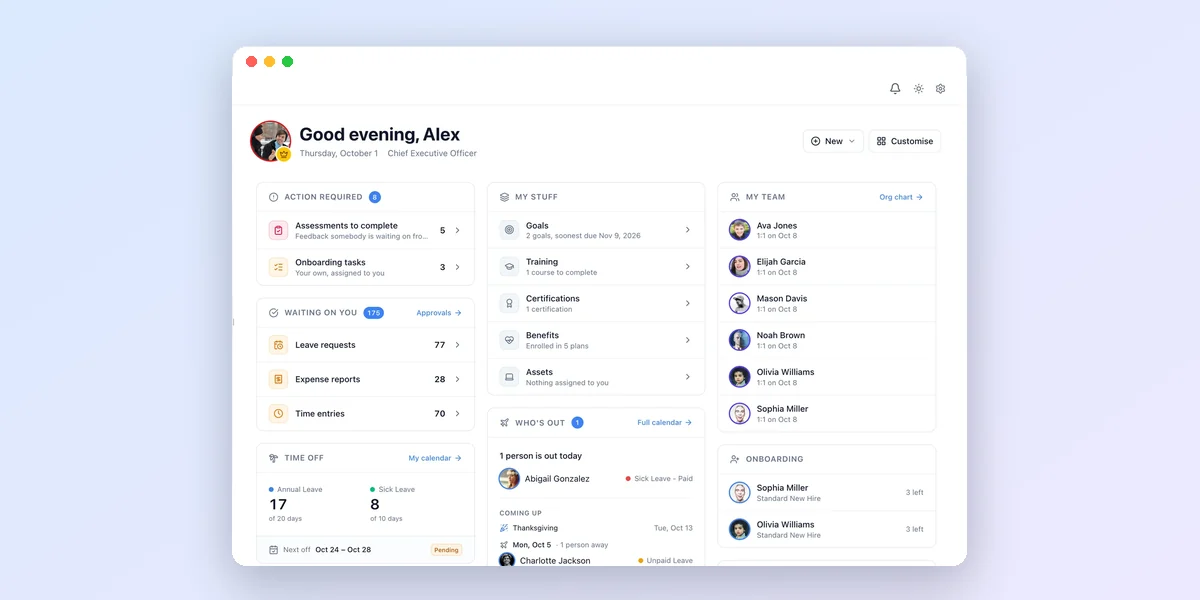
Signing in now lands on Home. It gathers what needs you, your own records, and — for people who manage or administer — their team and the organization. The Dashboard has not gone anywhere; it is still in the sidebar, unchanged.
What needs you comes first
The first card is Action Required: documents waiting on your signature, assessments you owe somebody, onboarding tasks and training past their date, and certifications that have expired. Each row says what it is for and opens the page where you deal with it. An onboarding task assigned to you for a new starter opens their onboarding, where the task lives, not your own.
This is the one card that cannot be switched off. When there is nothing outstanding it says so, rather than disappearing — "you are clear" is information too.
Beside it, Waiting on You appears for anyone requests are routed to, with leave, expense and time requests counted separately, each count matching the queue it opens.
Your own record, at a glance
- Time Off — your Annual and Sick balances, the same figures as the Leave Balance panel on your calendar, and your next booked leave.
- Today's Hours — hours logged today and whether you are clocked in, when your organization uses time tracking.
- My Expenses and My Documents — your claims and documents by where they have got to, naming the most recent ones so you know which report is awaiting approval, not only how many.
- Next 1:1 — who you next speak to, and when.
- My Stuff — a line each for goals, training, certifications, benefits and equipment.
What is happening around you
Who's Out shows who is away today and, over the next fortnight, who is away on which day — with their photo and the type of leave. Celebrations lists birthdays and work anniversaries over the next two weeks. Anyone with people reporting to them gets My Team: who is away and when they next speak to each. Department heads also see the onboarding still running in their own department, and administrators and executives see onboarding across the organization along with headcount, review cycles and what needs attention.
Every card follows the rules you already set
Home restates information that other parts of the product own, so it follows their rules rather than inventing its own:
- With other departments hidden, Who's Out and Celebrations show only your own department, as the Dashboard does. Administrators and executives are exempt, as the setting says.
- Private leave types read as "Private" to anyone not entitled to the detail.
- Who's Out sends a name, a date and a leave type — the reason somebody gave for being away stays on the server.
- A work anniversary reveals tenure, so it is shown only to the person, their manager, their department head, and administrators and executives.
- A module your organization has switched off — time tracking, say — does not appear on Home and cannot be added to it.
Arrange it your way
Customise turns the board into an editor. Drag a card to move it, or use the arrow keys; remove the ones you do not need; and add optional cards from the tray — Company Holidays, Leave Balance, Deductible and Non-deductible Leave, Organization Time for anyone working away from head office's timezone, and, for administrators and executives, Workforce Mix, Length of Service and Profile Completeness. Nothing is saved until you select Save.
Your layout is stored on your account rather than in the browser, so it follows you to another device. Switching a card off changes only what you see: it grants no access, and every card's data is still permission-checked on the server.
An org chart you can trust — and take with you
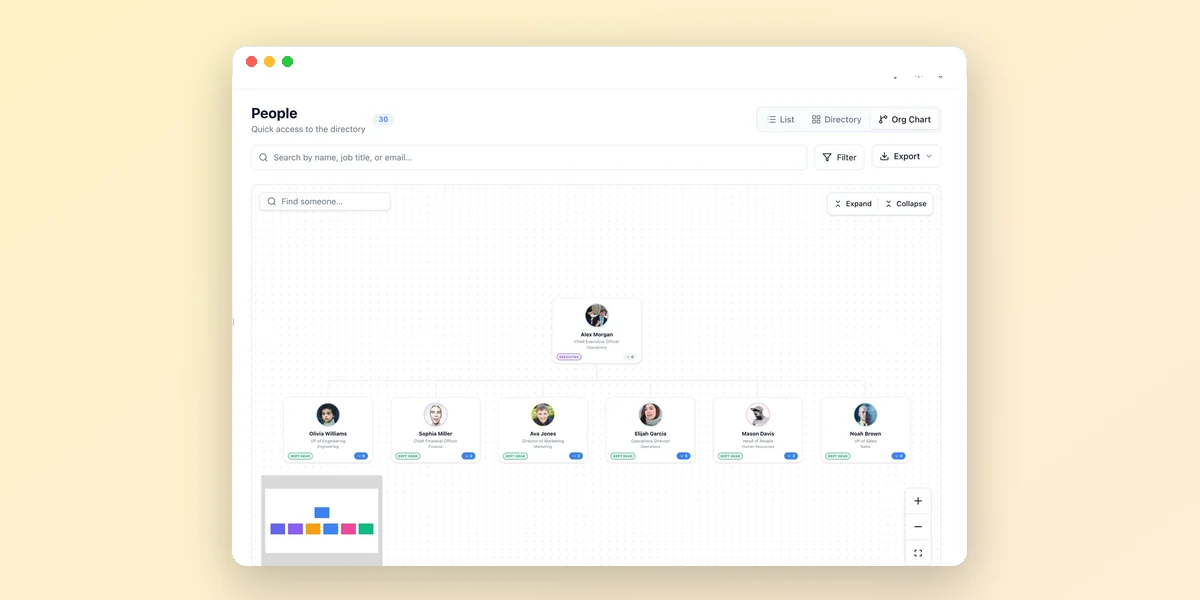
Home's My Team card links to the org chart, which is now built from the Reports To field and nothing else. It used to infer reporting lines from roles; now every line on it is one somebody recorded. A person whose manager has left, who is recorded as their own manager, or who is caught in a reporting loop surfaces at the top of the chart, so the record that needs fixing is visible.
Export offers a PNG of the chart as drawn, the same image as a PDF, and a .csv shaped for Visio, for Lucidchart, or for a spreadsheet. Who may download is a separate setting from who may browse, and every download, in every format, is recorded in the audit log — an export is a roster in a file, and it should be possible to say who took one.
Getting started
There is nothing to switch on. Sign in and you are on Home; select Customise to make it yours. Administrators can set who may download the org chart under Download Access in Company Directory settings.
Written by
AnHourTec Team